User Configuration
Each person who will use CPMobile must be defined as a Counterpoint user, even if that person will use CPMobile exclusively. Existing Counterpoint users will be able to use CPMobile automatically, but you will need to create a user profile in Counterpoint for each new CPMobile user.
Follow these steps to set up a new CPMobile user:
-
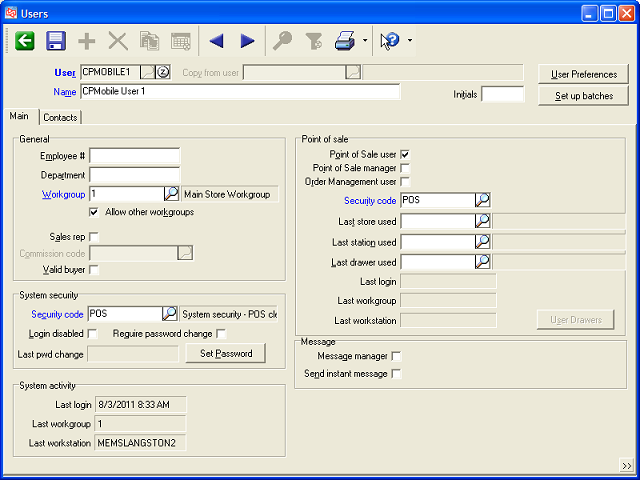
In Counterpoint, select Setup > System > Users to display the
 Users window.
 -
Enter the new user's ID in the User field.
-
Enter the user's Name.
-
Select a default Workgroup for the user.
-
Select the Allow other workgroups check box to allow the user to select a different workgroup in CPMobile than the one assigned to him or her.
-
Under System security, enter or look up the system Security code you want to assign to the user.
 If the Allow updating e-mail addresses authorization is selected in the user's system security code, the user will be able to update customers' e-mail addresses in CPMobile. CPMobile ignores all other settings in the user's system security code.
-
If you are processing credit cards and the user will be using CPMobile only, click the Set Password button and have the user specify a PCI-DSS-compliant password.
If the user will be using Counterpoint, as well as CPMobile, the user will be prompted to create a PCI-DSS-compliant password the first time he or she logs in to Counterpoint.
-
If you want the user to be able to process return lines and/or perform price overrides in CPMobile, select the Point of Sale user check box, and then enter or look up the Point of Sale Security code that includes the appropriate authorization settings.
The Allow return lines, Override prices, Allow discounts and Allow order lines authorizations must be selected in the user's Point of Sale security code for the user to be able to perform these actions in CPMobile. CPMobile ignores all other settings in the user's Point of Sale security code.
-
If the user does not need to log in to Ticket Entry or Touchscreen Ticket Entry in Counterpoint, clear the Point of Sale user check box after you have specified the Point of Sale security code for the user.
All other fields and settings in the user profile are optional and are not required for CPMobile.